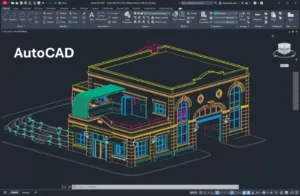
AutoCAD

Complete Overview Of The Course

Buy Course

Topics Covered

Introduction to AUTOCAD
  • Taking the AutoCAD Tour
  • Working with files
  • Creating basic drawings
  • Creating basic Objects
Using Object Snaps / Working with Units
  • About Object Snap
  • Object Snaps & Using Object Snap
  • Using Polar Tracking and Polar Snap
  • About Object Snap Tracking
  • Using Object Snap Tracking
  • Exercise: Use Object Snap Tracking
  • Working with Units / About Units / Setting Units
  • Exercise: Use Architectural Units
  • Exercise: Use Surveyor’s Units
Manipulating Objects
  • Moving Objects
  • Creating New Objects from Existing Objects
  • Rotating Objects
  • Mirroring Objects
  • Creating Object Patterns
  • Creating an Array of Objects
  • Scaling Objects
  • Challenge Exercise: Grips / Challenge
  • Exercise:
    Architectural / Challenge Exercise: Mechanical
Drawing Organization and Inquiry Commands
  • Organizing Objects with Layers
  • Default Layer / Layer Tools
  • Changing Object Properties
  • About Object Properties
  • Matching Object Properties
  • Using the Properties Palette
  • Drawing Organization and Inquiry Commands
  • Using Linetypes / About Linetypes
  • Using Inquiry Commands
About Measuring
  • Using Measure Tools
  • Obtaining Object Information
  • Exercise: Obtain Geometric Information
  • Exercise: Measure Objects
  • Challenge Exercise: Architectural
  • Challenge Exercise: Mechanical
    Altering Objects
Alteration in AUTOCAD
  • Trimming and Extending Objects to Defined Boundaries
  • Joining Objects
    Breaking an Object into Two Objects
  • Applying a Radius
  • Corner to Two Objects
  • Changing Part of an Object’s shape
Working with Layouts
  • Using Layouts
  • About Layouts
  • Creating a New Layout
  • Exercise: Create Layouts
  • Using Viewports
  • Creating Rectangular Viewports
  • Setting Viewport Scale Factor
  • Manipulating Viewports
  • Rotating Viewports
Annotating the Drawing
  • Creating Multiline Text
  • About Multiline Text
  • MText Columns and Grips
  • Creating Single Line Text
  • About Single Line Text
  • Creating Single Line Text
  • Editing Text
  • Using Text Styles
Dimensioning
  • Creating Dimensions
  • Creating Dimensions on Linear Objects
  • Creating Dimensions on Curved Objects
  • Enhancing
  • Dimensions
  • Using Dimension Styles
  • Creating and Modifying Dimension Styles
  • Using Multi leaders
Hatching Objects
  • Hatching Objects
  • Introduction to Hatch
  • Patterns and Gradient Fills
  • Associative Hatch Patterns
  • Creating Hatched Objects
  • Editing Hatch Objects
    Maintaining
  • Associative Properties when Editing
    Hatches
Working with Reusable Content
  • Using Tool Palette Tools
  • Exercise: Add Content from Tool Palettes
  • Challenge Exercise: Architectural
  • Challenge Exercise: Mechanical
Plotting Your Drawings
  • Using Page Setups
  • Applying Page Setups to Layouts
  • Creating Page Setups
  • Plotting Drawings
  • Plotting from Model Space
  • Plotting from Layouts
  • Plot Command
  • Preview Command
Creating Drawing Templates
  • Creating Drawing Templates
  • About Drawing Templates
  • Drawing Template Options
  • Creating Drawing Templates
  • Exercise: Create a Drawing Template
Printing Your Design, Text, Hatching
  • Printing from Layout Tabs 
  • Printing from the Model Tab
  • The Multiline Text Tool 
  • The Single Line Text Tool 
  • Editing Text 
  • Text in Model Space vs. Paper Space
  •  The Multileader Tool
  • The Hatch Command 
  • The Hatch Editor Ribbon Tab 
  • Saving and Applying Hatches with Tool Palettes
Adding Dimensions and Projects
  • Using Dimensioning Tools 
  • Dimensioning in a Layout Tab vs. the Model Tab 
  • Using Dimension Styles 
  • Editing Dimensions
  • Major (in group) 
  • Minor (Individual)

Important Course Highlights

  • Pre – Recorded Content.
  • Live Group Q&A Session.
  • Course Community.
  • Unlimited Lifetime Access.
  • Internship Opprtunity.
  • Certificate Of Completion.
  • 00Hours
  • 00Minutes
  • 00Seconds

Course Description

Our comprehensive AutoCAD course is designed for both beginners and professionals who want to strengthen and advance their technical drawing and design skills. This program provides a thorough understanding of AutoCAD’s tools, features, and workflows, enabling you to create precise, high-quality 2D and 3D designs with confidence. You’ll learn essential drafting techniques, explore advanced modeling options, and understand how to apply industry-standard practices used in engineering, architecture, and product design. Through guided lessons, hands-on exercises, and real-world examples, you’ll develop the practical expertise needed to work efficiently, improve productivity, and bring your creative or technical ideas to life using AutoCAD.

Course Content

Why Choose Us?

What You Will Learn By This Course

AutoCAD Mastery

AutoCAD Mastery

Precision Learning

Precision Learning

Industry Applications

Industry Applications

Certificates

Our Mentors

Our Programs

How Can We Help You

What are the prerequisites for enrolling in the AutoCAD Course?

Basic DRAWING knowledge and a fundamental understanding of mathematics, angles, designing are recommended. No advanced prerequisites are required.

Who should take this AutoCAD course?

This course is ideal for beginners wanting to enter the field of autocad, design enthusiasts looking to deepen their knowledge, career changers transitioning into data science, and professionals seeking to enhance their skills in machine learning.

What topics are covered in AutoCAD course?

Can see the top Left Corner, all the topics covered in the course are mentioned.

How long is this course

The course typically spans 6-8 weeks, depending on your pace, including lectures, assignments, and hands-on projects.

Will I recieve a certificate on completion of this course?

Yes, you will receive a certificate of completion and a Letter of Recommendation upon successfully finishing the course and all required assignments and projects.